Does this sound familiar? You spend weeks or months creating an ebook. You organize… you categorize… you summarize. Finally, the book is converted and ready to upload to Amazon. With fingers crossed, you anxiously press the “publish” button.
You’ve done it! You’ve just released the next #1 bestseller to the world. Or so you thought.
After a week, you have two sales. After a month… six. What’s the problem?
The information in your book is awesome. It’s well written and spot on. The topic is hot and gets a lot of searches on Amazon every day. You show readers the specifics of how to fix common problems that drive people crazy. You outline the five steps to overcoming the most annoying things life throws your way. You even give them the age-old secret to developing a life others will envy.
So why aren’t people buying? Chances are good that it’s because readers don’t have a clue what they will gain from your book.
How People Shop Using Amazon Book Listings
Think about your own experiences when browsing Kindle book. If you’re like most people, you go to Amazon with a particular topic/problem/curiosity in mind. Since you’re shopping specifically for Kindle books, you type your search query into the box, select “Kindle Store” from the dropdown menu and click “Go.”
For our example, let’s use “internet marketing for beginners” as our search. Here’s what I’m seeing when I type in that phrase.
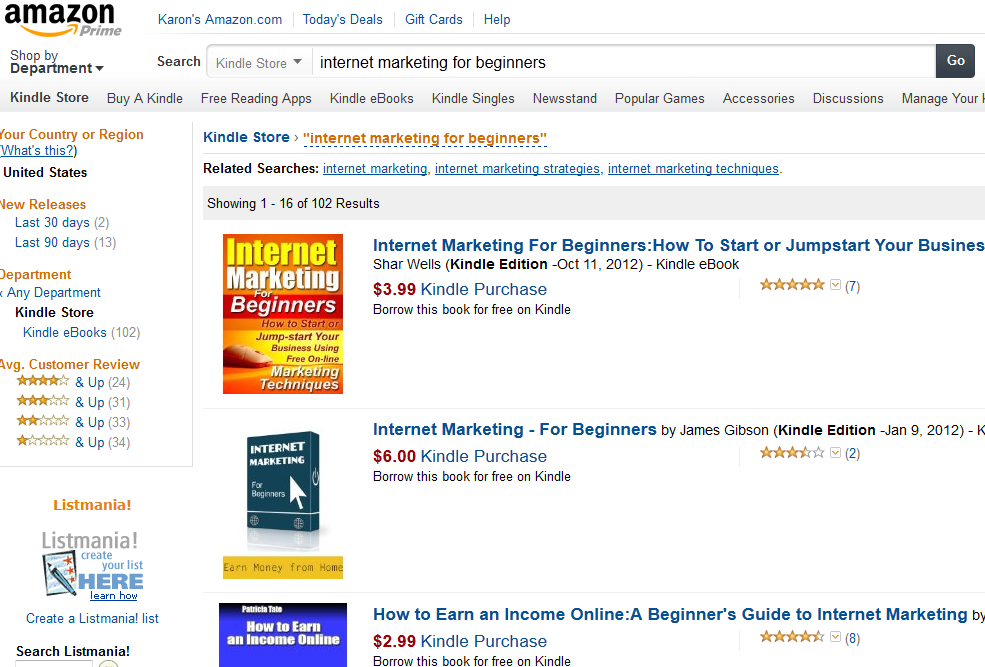
While the title catches the eye and builds interest, it isn’t likely to make sales for you all by itself. The title will get people to click, but what they find afterwards is the determining factor in whether your book sells or not.
What do you do next when you’re shopping? See if the book will give you what you want. And that’s where the most important sales tool at your disposal comes into play: your Amazon book listing / description.
Most people click the title then immediately scroll down to read the book description words. They want to know what the book offers before they spend their money and time to purchase and read the work.
Yes, at some point they will probably look at the total number of reviews and how the book ranks. They may even take time to read a few of the reviews. But none of that will matter if they first aren’t satisfied with what is written in your Amazon book description.
Bringing the Back to the Front
When writing your Kindle book description, you’re writing essentially what would be the back cover copy of a traditional, paper book. Go to your bookshelf and pick up any book. Flip it over to the back cover and you’ll most likely see what I’m talking about.
These days, almost every paper book has back cover copy and/or testimonials/endorsements for the book. This is precisely what you want as your product or Amazon book description.
The Formula for Writing a Great Kindle Book Description Listing
Regardless of genre, a few things hold true when writing Kindle book descriptions. The book description words be enticing. They should make as much use of formatting as they do words. They need to leave the reader wanting more.
Here’s my formula for writing Kindle book descriptions for fiction and nonfiction books.
1. Create a “headline.”
Why a headline? A couple of reasons. First, jumping straight into the description leaves something lacking, in my opinion. For business-related books, your best bets will be “how to” or benefit-related statements. There are hundreds of ways you could go when writing a headline for your product description, but these two are very powerful options.
Here are a few of the headlines from the back covers of some books on my physical bookshelf. (Almost all of the books I own are business books.)
More than 3,500 words, phrases, and slogans guaranteed to hit your target with power and precision every time.
Attract Interest then Nail the Sale!
Build an Internet Marketing Strategy that Delivers
Run a Profitable Google AdWords Campaign!
Do you see how they instantly pique interest? I find using a headline with your book description works much better than a description alone.
2. Open with accolades.
When you state that your book is an Amazon bestseller (better yet, a #1 Amazon bestseller (if that is true)), is a New York Times bestseller, has sold over _____ copies, is newly revised, etc., then shoppers feel more confident about their purchases.
These are distinctions not every book can make. Stating these accolades offers an invitation for your readers to join an exclusive club of those who have made your book so popular.
I usually begin with the simple statement in the headline such as:
- “#1 Amazon Bestseller”
- “#1 Amazon Bestseller Unlocks the Secrets to….”
- “Amazon Bestseller for 16 Weeks Straight,” etc.
If you have no accolades (yet), create a headline like the examples I showed from the books I own.
These 5 Words Can Make or Break Your Marketing Results
Ready for more clicks, increased engagement & better results from all your marketing? It's time to beef up your short copy. Discover 5 words that add power & persuasion to headlines, titles, subject lines, bullets, calls-to-action and more.
I understand that I will also receive weekly articles & videos plus periodic discounts, product notices & more. I can unsubscribe at any time.
3. Be elusive and mysterious.
The point of your Kindle book description isn’t to reveal everything about your book. The purpose is to engage readers and entice them into buying the book to answer a few questions. The words “this,” “these,” “it,” “that” and “here” can be vital tools in writing mysterious copy that begs shoppers to click that “buy” button.
As you write the summary of your book, structure your copy as incomplete sentences. (Yes, I know your high-school English teacher will be mad, but she’s not trying to sell books!) Here’s what I mean.
Instead of writing, “The night Angie’s father died after a long battle with cancer caused her to finally grow up and turn her life around,” say, “What happens on this night will be a pivotal point that changes Angie’s life forever.” Your reader is left asking him/herself, “What night? What happens? How does Angie’s life change?”
By leaving out key elements in your book listing, you force a sense of (good) frustration in your customers. They almost need to know the information you’ve left out to answer the questions swimming around in their heads.
You can also write direct questions. “Will Angie’s father survive his yearlong health battle? Can she overcome the demons of her past or will she be tormented forever?” These also instill that same sense of frustration that drives people to buy.
You do not want to take the openhanded approach to a product/book description and lay everything out on the line like this… “After a yearlong battle with brain cancer, Angie’s father dies, leaving her to struggle with the demons of her past alone. She triumphs over her anxiety attacks and alcoholism, lands the guy of her dreams, finds a steady job she loves and lives happily ever after.”
Too much information. You’ve basically given readers the answer to every question. You’ve fully satisfied their frustration about what happens next. Now they have no reason to buy.
4. Use formatting as well as words.
Take some time to click through a few dozen Amazon Kindle book listings. Scroll down and just look at the book description words chosen. You don’t even necessarily have to read them.
Which ones catch your eye the most? If you’re like me, it’s the ones that make good use of formatting. Many simply upload the text in paragraph form. That’s hard to read. It isn’t eye friendly.
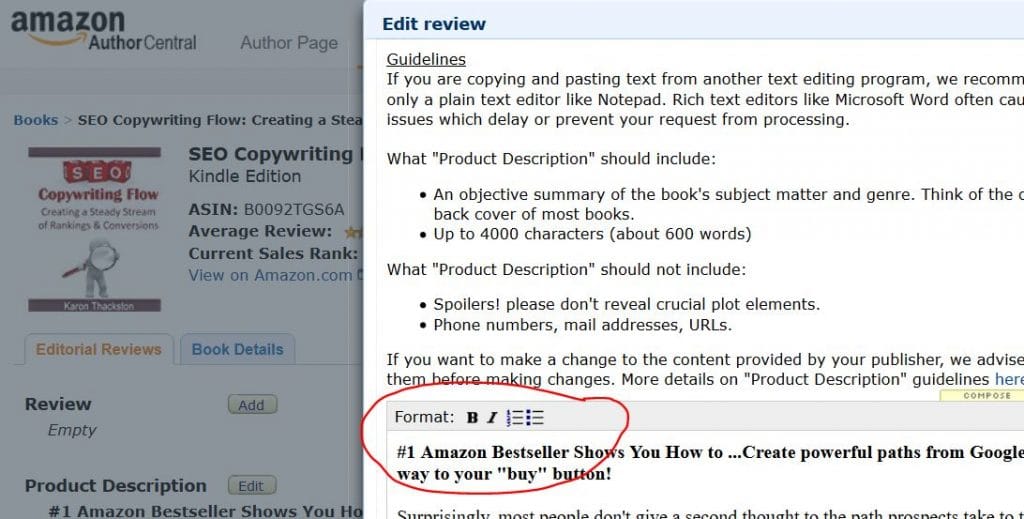
My experience is that book descriptions that incorporate bolding, italics and bullet points work best to guide the shoppers’ eyes to the information most valuable to them.
I prefer to create my book descriptions in Amazon Author Central instead of the Kindle Direct Publishing dashboard. Author Central gives you the ability to use bold, italics, numbering and bullets freely.
I make a point to include a bullet list in every Amazon book listings I write simply because it draws the eye and helps improve readership of that section of the description. Likewise, bolding only those most important messages can also improve the effectiveness of your description.
5. Create a call-to-action.
Even for novels and other fiction works, inserting a call-to-action points people in the right direction. It doesn’t have to be elaborate. Something simple such as “Follow along as Angie turns turmoil into triumph” or – for a business book – “Buy now and start [reaping this benefit] today.”
6. Include keywords.
Since Amazon functions as a search engine, you’ll want to include the same keywords in your title and book description that you used when setting up your Kindle listing. (Amazon says you don’t need keywords in your description, but I’ve found evidence to the contrary.)
Unlike with Google or Bing, there isn’t a lengthy list of dos and don’ts about keyword use in Amazon. Make it sound natural, NOT like this example:
This internet marketing e-book will introduce the ‘newbie’ marketer to free internet marketing techniques, strategies, tips and solutions that will help resolve the internet marketing promotions dilemma that most newbie marketers face online.
It is an internet marketing tool and internet marketing training course that will guide the marketer towards becoming an internet marketing specialist bringing about online success and a profitable internet marketing business experience.
Oh please! Most of those instances of “internet marketing” could be removed and it would read much better. Don’t butcher your description by inserting keywords at every possible turn. It’s simply too much and isn’t necessary. Amazon rankings revolve around much more than keywords in book descriptions, so there’s no need to ruin the message people will read for the mere hope of improving rankings.
This is a lengthy blog post which gives you a great introduction to Amazon book listings and choosing which book description words to use.
But there’s still much more to share.
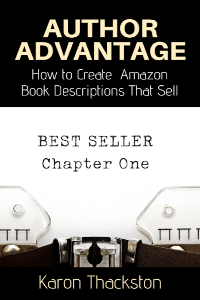
That’s where my “Author Advantage: How to Create Amazon Book Descriptions That Sell” ebook comes in. Discover how to perfect your book description writing skills with these techniques that boost traffic and sales of your Kindle and paper books. Use coupon code AUTHORBLOG to save $10 now.
Thank You Karon! I just found this on BizSugar and I’m in the works updating my Amazon Kindle eBook for Twitter. This is very helpful especially the part about writing the discripton. You gave me some very good ideas. 🙂
Thanks for stopping by! I hope you’ll come back for more online marketing tips. I appreciate your kind words.